Purchase and download the APK
Choose one month or one year, complete Flutterwave checkout, and save the activation key. The verified-payment page provides the signed APK.
Continue to payment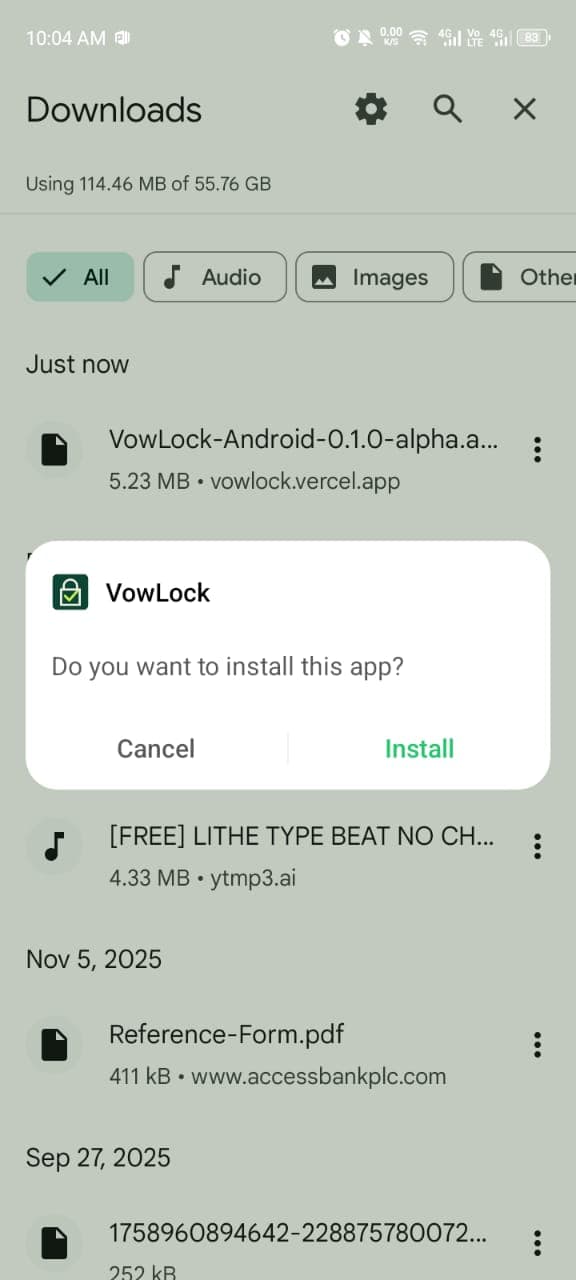
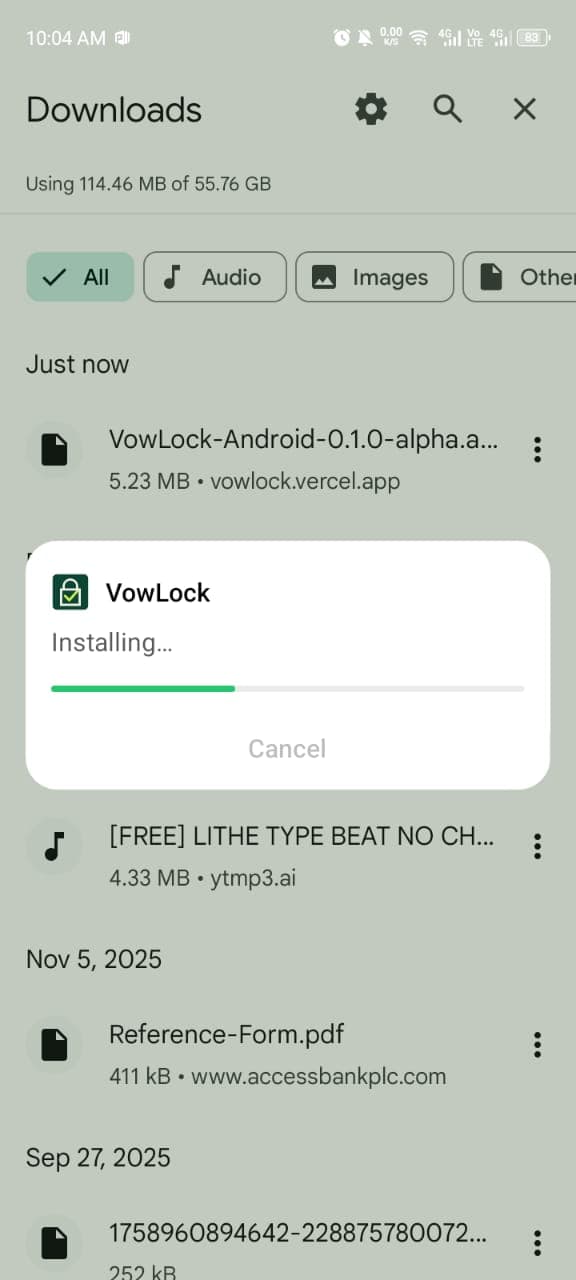
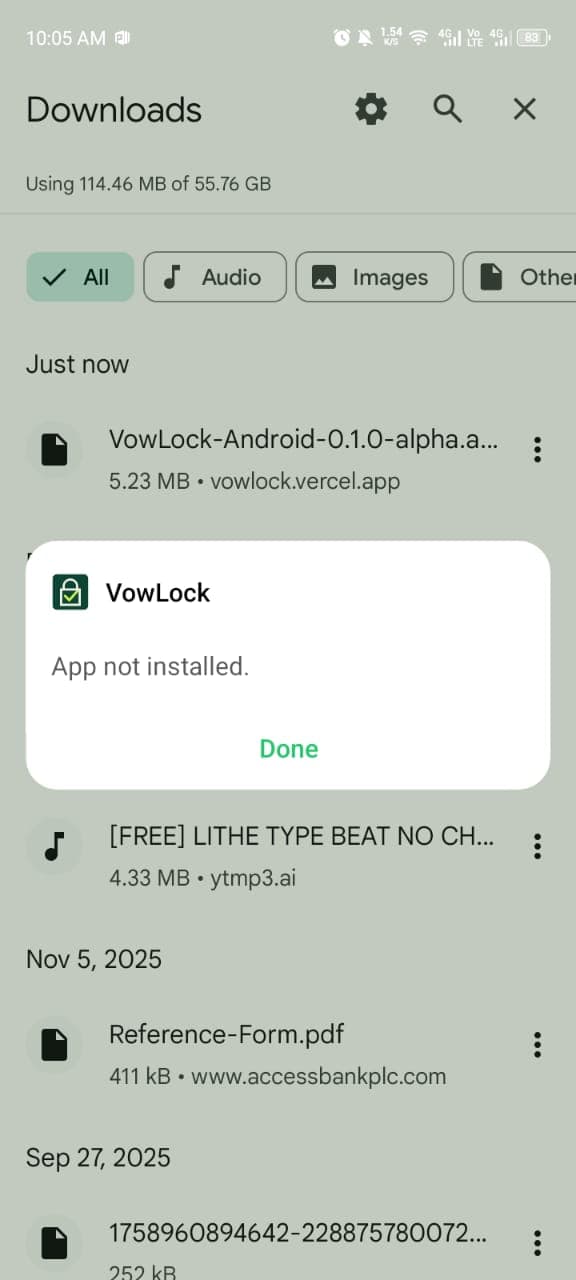
If Play Protect blocks installation
This specific warning is triggered because an Internet-downloaded APK declares Accessibility access. Google’s enhanced fraud protection blocks the declaration before it evaluates how VowLock uses it.
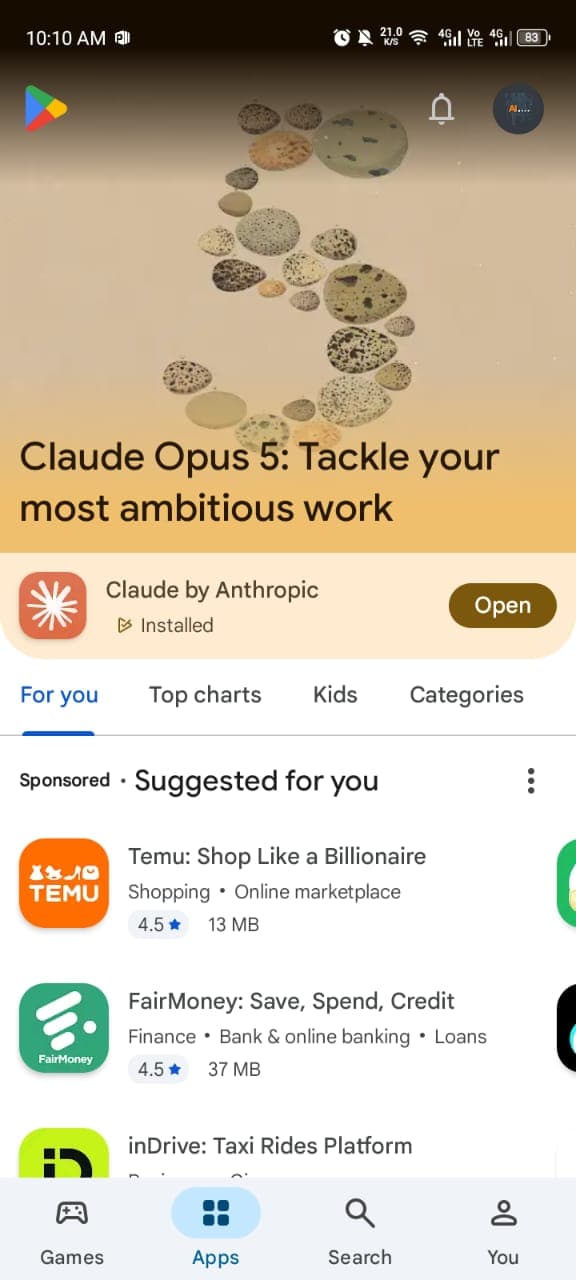
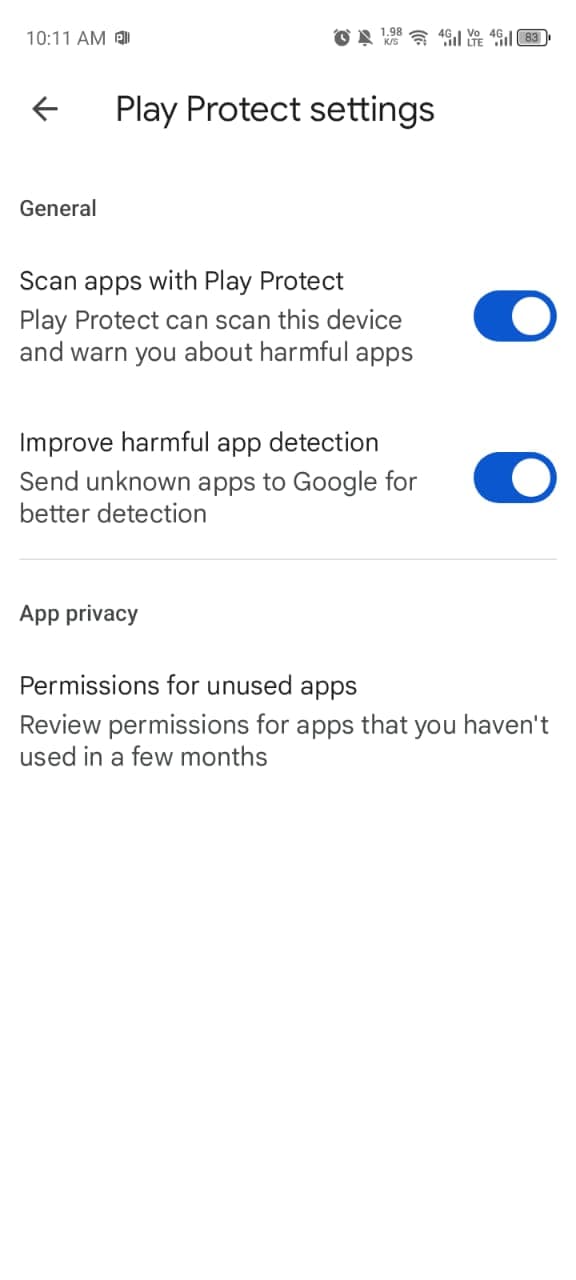
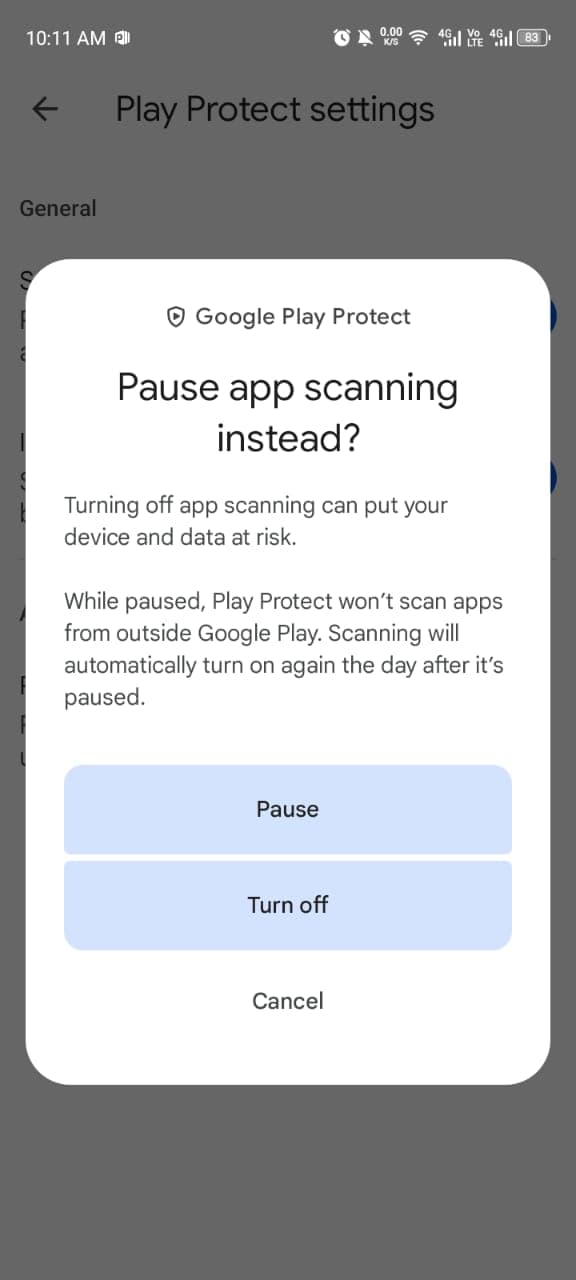
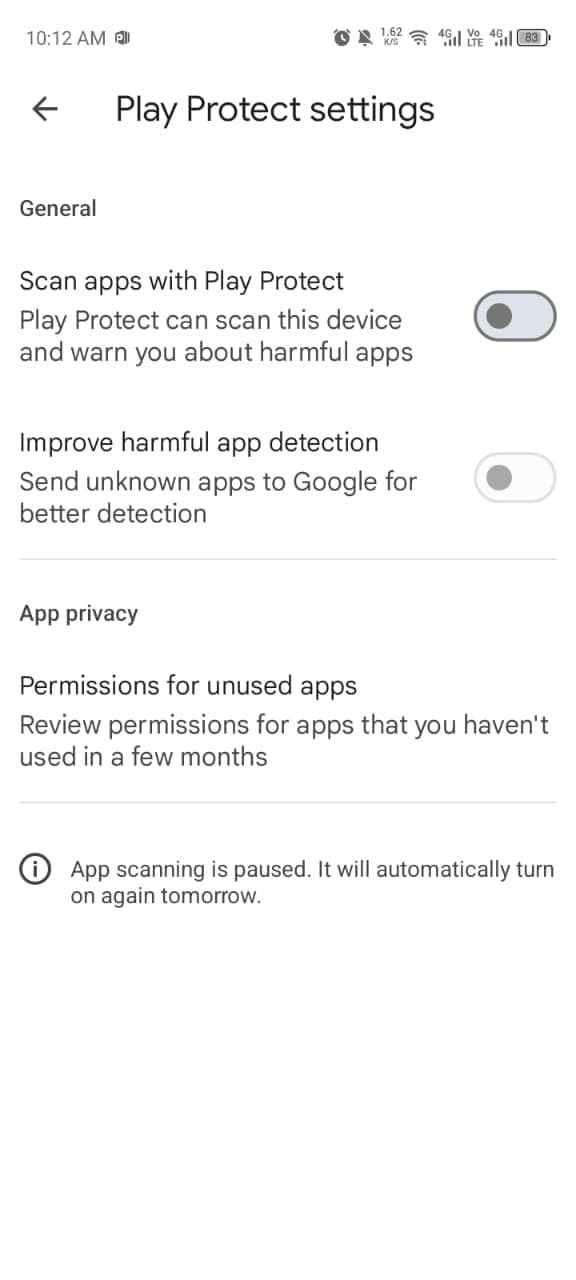
Tap Got it. Open Play Store → profile picture → Play Protect → settings gear. Turn off Scan apps with Play Protect and choose Pause. Install only VowLock while scanning is paused.
Start website protection
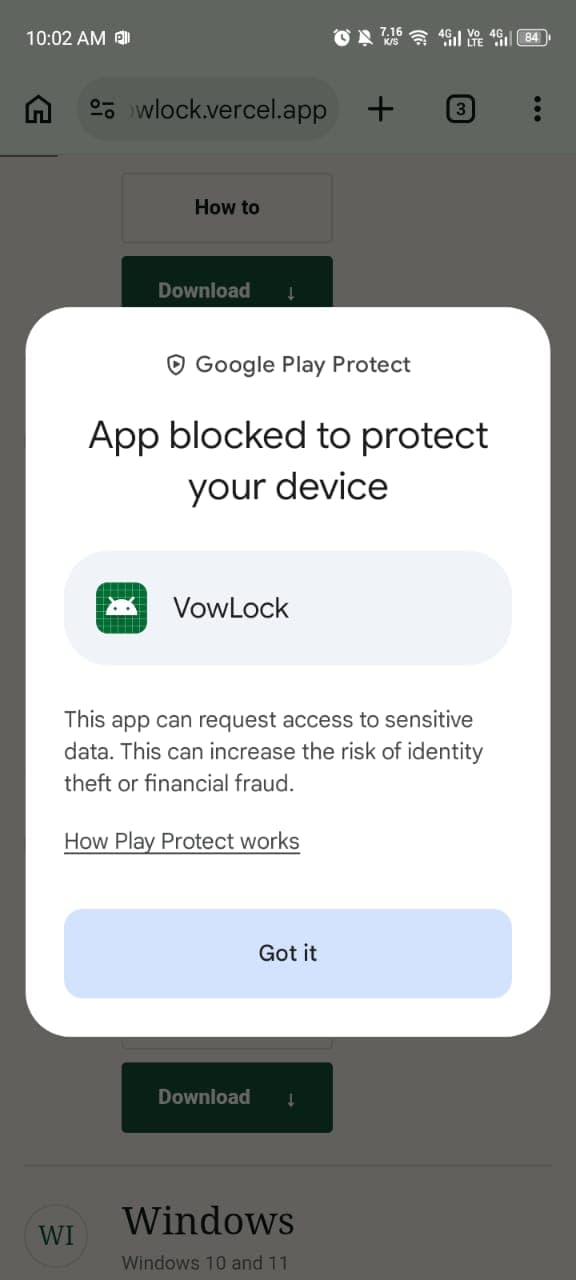
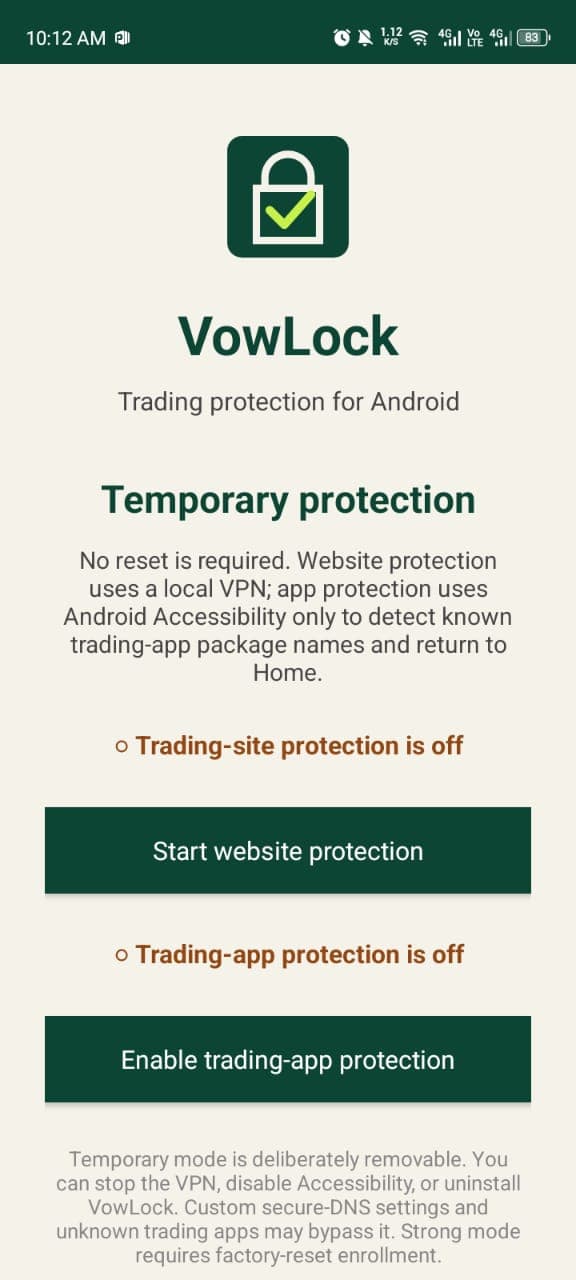
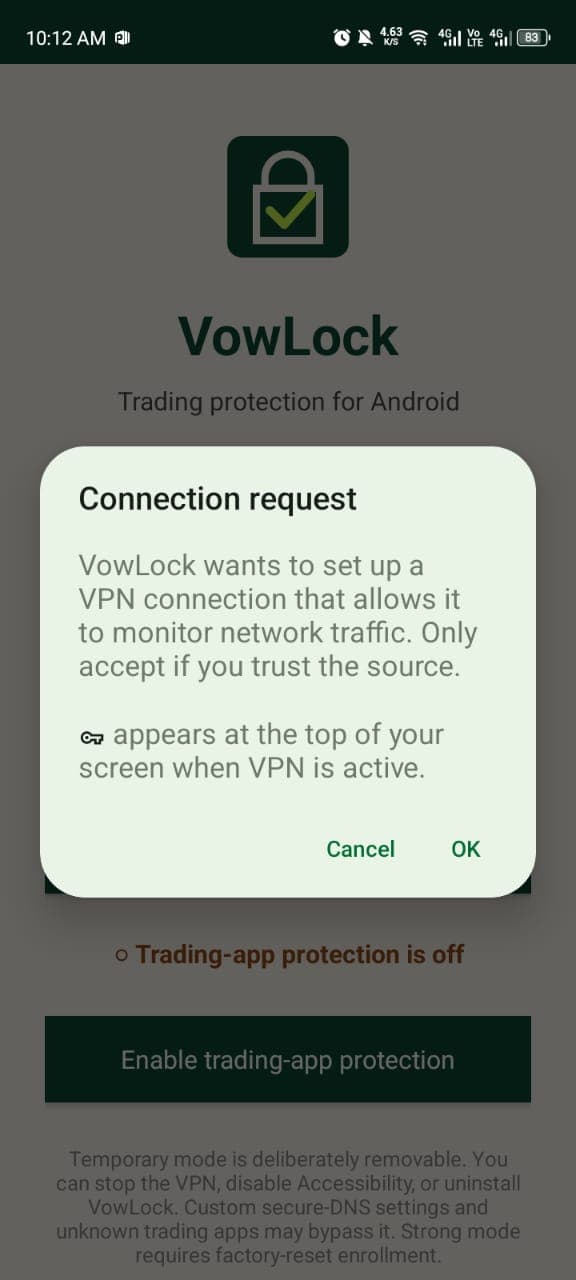
Open VowLock, tap Start website protection, then approve Android’s VPN connection request. The VPN is local: DNS requests are filtered on the phone rather than sent through a VowLock server.
Verify the website boundary
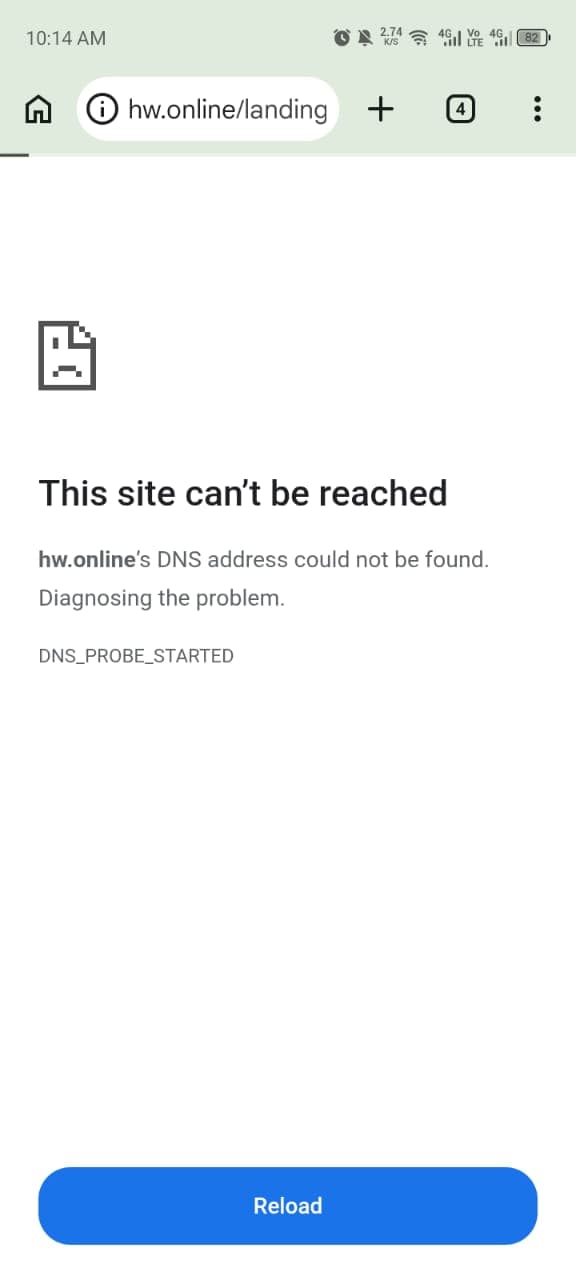
First open an ordinary website to prove general browsing still works. Then use the VowLock test list for every category selected at checkout. The expected result for every protected domain is a DNS address error.
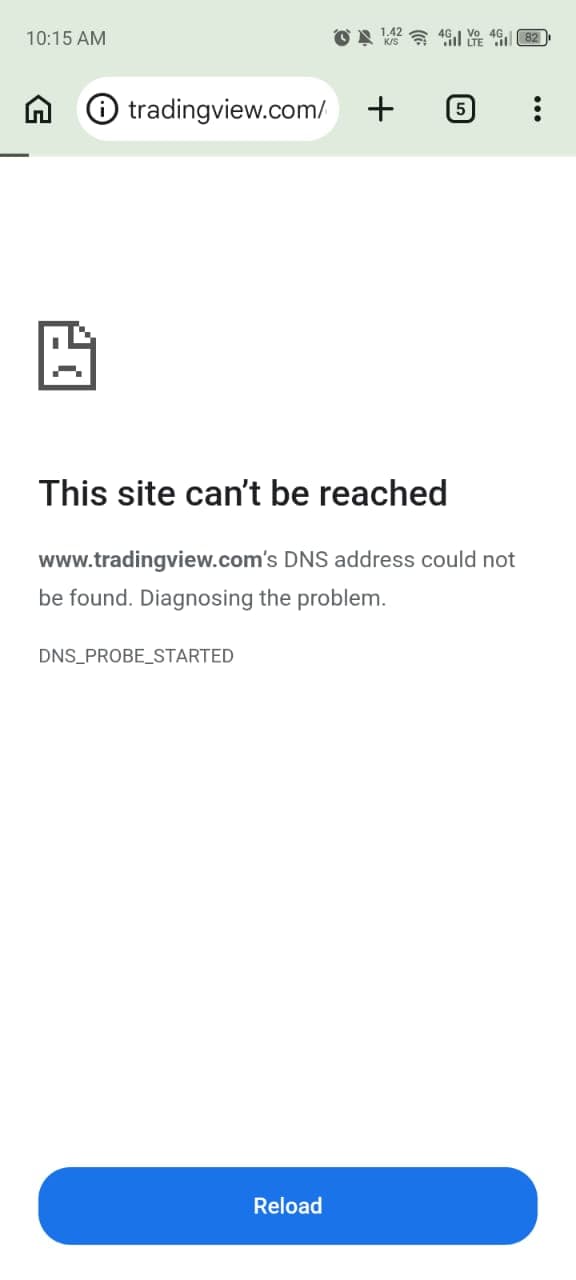
Final permission
Allow the exact app guard
If Accessibility reports Restricted setting, close that message and open Settings → Apps → VowLock. Tap the top-right menu and choose Allow restricted settings. Return to Accessibility → VowLock app protection, turn it on and accept the system warning.
Then open one supported installed app from each selected optional platform category. A protected app should return you immediately to the Home screen. Until this switch is enabled and tested, VowLock is protecting websites only.
Google’s official restricted-settings instructions ↗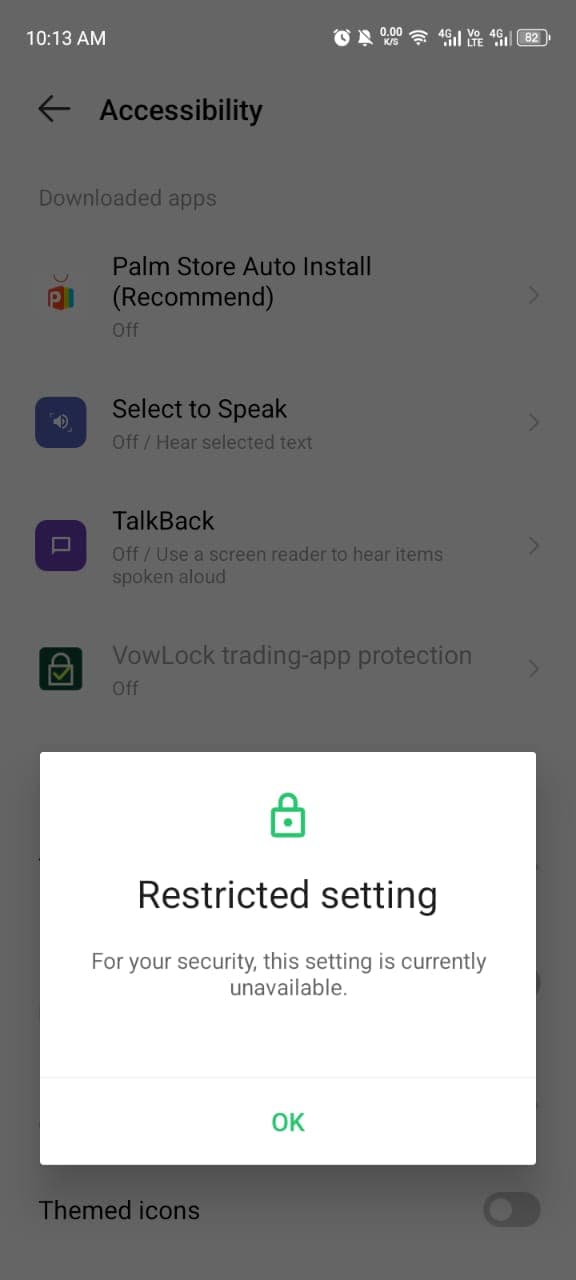
Finish securely
Return to Play Store → Play Protect → settings and turn Scan apps with Play Protect back on. Restart the phone once, then retest a normal website and the supplied website and app checks for every selected category.